
Managing project tasks can become complex, especially when coordinating across multiple team members. Rules in Microsoft Loop simplify this process by automating communications, such as sending emails via Teams, Outlook, or in-app notifications when a task is added or updated in a specific project table.

With Rules in Microsoft Loop, you can define triggers, conditions, and actions to streamline your workflow. For instance, you could create a rule: “When the Roles column contains ‘Marketing,’ automatically send a group chat.
How it works:
- Select the table in Loop that you want to set the rules.
- Click the … and then select Rules.
- Set your triggers, such as “When Priority equals Low,” and then select Automate to “Send a message on group chat.“

4. It will open the dialog box to set up your flow. Select the Microsoft Teams Group chat you are in or add a custom item, such as the conversation ID of the group chat. Then create a flow.

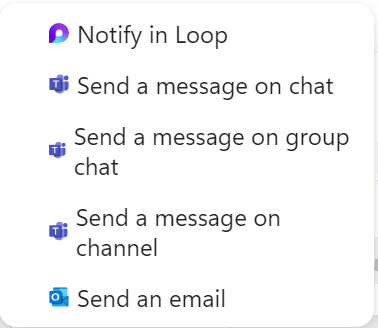
There are two ways of notification when rules are set:
- In-app Notification
- Notify in Loop *
- Power Automate **
- Send a message on chat
- Send a message on group chat
- Send a message on channel
- Send an email
* Doesn’t require a Power Automate license
** Requires Power Automate License
In-app notification for the rules will show you the details of what has been edited on the table and from what Loop workspace and page.

The flow details what was modified, including the time of the change and the specific Loop page. To view the Loop page where the modification occurred, click the provided link.

The flow created will be under the default environment, and you can access it through the Power Automate portal. I did some testing, and you can rename the flow to quickly identify what flow has been created and from what Loop pages. You can also add more details to the flow description. Every rule created will create a flow if you choose the Power Automate actions.
You can change the triggers and conditions, but you cannot change the action, as it becomes disabled when modified.
Disabling rules in Loop doesn’t stop the flow in the Power Automate portal. However, deleting a rule in Loop also removes the corresponding flow in Power Automate.
Rules are available in the following components:
- Tables
- Tasks
- Voting Table
- Progress Tracker
- Kanban Board
- Team Retrospective
You can’t create rules if you create a table component in Teams, Outlook, or other applications. You can only create on the browser or in Loop PWA.
Note that Rules in Microsoft Loop are currently in Preview, and the details provided in this blog may evolve as the feature develops.