


Requirement
Get Multiple Attachment files from SharePoint List and send an approval request using Power Automate.
Actions in Flow
When an item is createdSite Address= your SharePoint siteList Name= the lists where it is requested
Initialize an array variable- Next is to initialize a variable with the type ‘Array’
Get attachmentsSite Address= same with action 1 SharePoint siteList Name= lists selected from action 1
*Id = IDfrom the ‘When an item is created‘ action
Get attachment content- Site Address = same with action 1 SharePoint site
- List Name = lists selected from action 1
*Id = IDWhen an item is created‘ action*File Identifier = Idfrom the ‘Get Attachments‘ action
Append to array variableName= variable that you’ve initialized in action 2Value=Nameis theDisplayNameof from the ‘Get Attachments‘ action then theContentis theAttachment Contentfrom the ‘Get attachment content‘ action
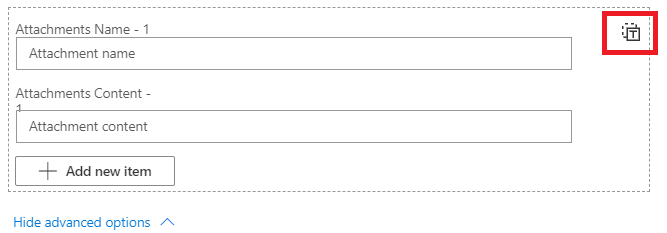
Start and wait for an approval- Expand the ‘Show advanced aptions‘ and then select the icon in the left side of the
Attachment. [Switch to input entire array] Attachment= insert the variable from the ‘Append to array variable‘ value
- Expand the ‘Show advanced aptions‘ and then select the icon in the left side of the

Get Multiple Attachment Flow


{
"Name": @{items('Apply_to_each')?['DisplayName']},
"ContentBytes": body('Get_attachment_content').$content
}
Updated: Change the “Content” to “ContentBytes”


Common Approval Error
Common issues that you may encounter during the approval. These are the errors that I’ve encountered while building the flow.
‘CdsApiAttachmentSizeLimitExceeded’ means that the attached file exceeded the approval email. The default size is 5MB in CDS.


To check and increase the email attachment settings of your Power Platform Environment:
- In the Power Platform Admin Center, select the environment
- Then select Settings >> Expand the Email, then select Email Settings
- Under the Attachments, you will see the size in kb. The maximum file size that you can configure is 131072 kb.


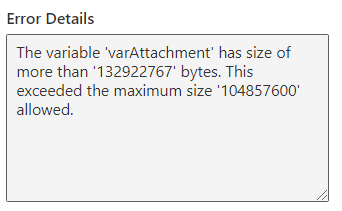
Even if you increase the attachment file size, you need to check the maximum size of the 'Append to array variable' action in Power Automate. The variable maximum size is 104857600 bytes ~ 104 MB.

Conclusions
You need to properly communicate with your user the maximum file size you have set in your environment so as not to encounter this issue. If you need to know the common errors in the approval workflow, check the reference section.
And if you have tips with the variable issue, let me know, and I’m happy to explore and update the blog and give credits to you. 🤩
Reference
Common Errors Creating and Assigning Flow Approvals (microsoft.com)