


Ever since the preview days of AI Builder, I’ve been an enthusiast of creating AI-powered apps – much like my passion for diving into Mixed Reality. The evolution of these technologies continues to fuel my personal and professional excitement, as I eagerly anticipate their integration into our everyday experiences. It’s fascinating and fulfilling that you could build an application and flow using AI and Mixed Reality in Power Platform without code.
After finishing up the AI Skills Challenge, which introduces you to AI Builder, build and train the models, and use the model in your Power Apps and Power Automate. Three years back, I built an app with two preview features. Today, those features have flourished into essential elements of modern software. This journey underscores the importance of embracing change and fuels my enthusiasm for continued innovation. Here is how it works.
Business Scenario:
As we are into buying online, you wanted spare parts for your toy collection. By uploading the image, you can see if they have the item, and you can interact with the item you want to buy.

How it works:
I used AI Builder: Object Detection and Mixed Reality in this application. AI Builder Object detection is a custom AI model. It provides object recognition capabilities. You need to train this model and have a premium license. Mixed Reality component in Power Apps to view the object using 3D. This component does not need a premium license.
How I build it:
I’m going to show you how I build it. Let’s start with the AI Builder Object detection.
Object Detection
- From make.powerapps.com, select AI model >> New AI model >> Object detection.

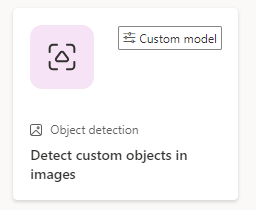
- After selecting the object detection, this will show tips and documentation on how you will do it. Select create custom model.
- Select the model’s domain from Common objects, Objects on retail shelves, or brand logos.

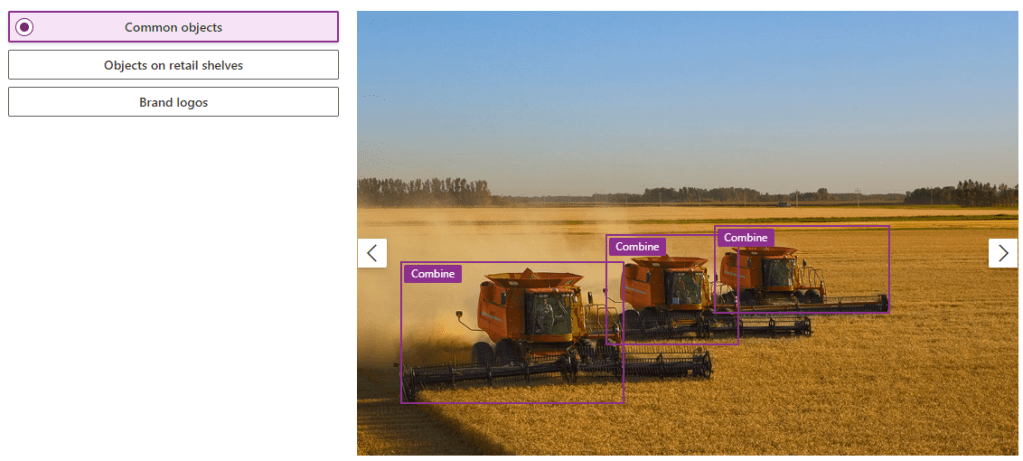

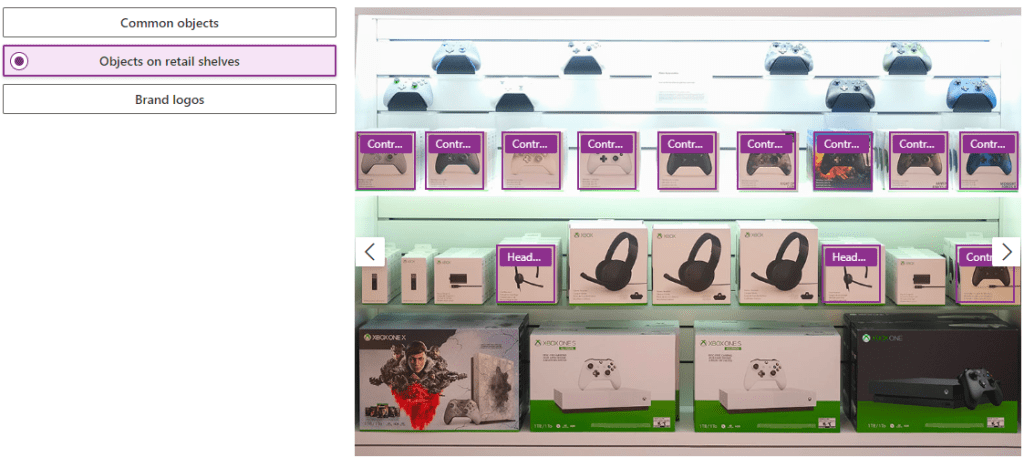

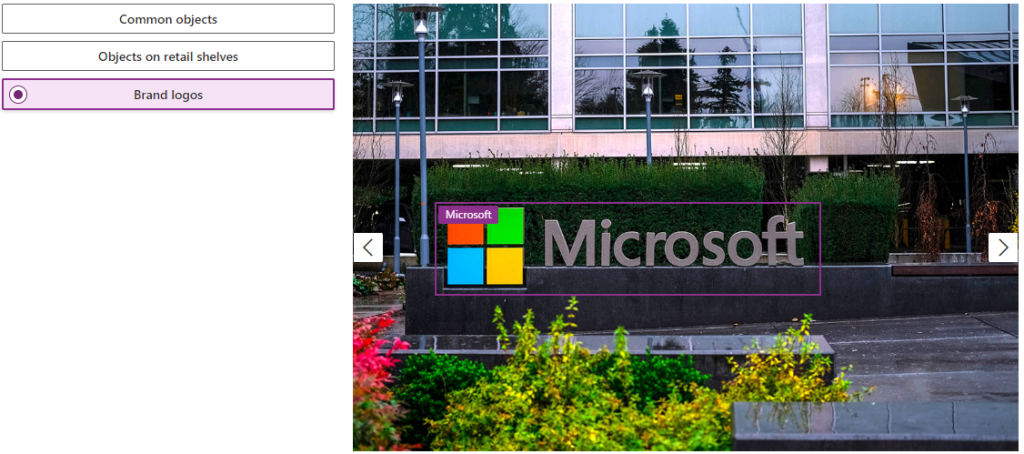
In the app, I selected the Common objects as my object is not a brand logo or on the retail shelves.
- Select Next. Choose objects for your model. You need to select your database or add the object manually. You can select from a database or add them manually. If you have existing data in your Dataverse, you can use it. On my end, I manually input the object names.

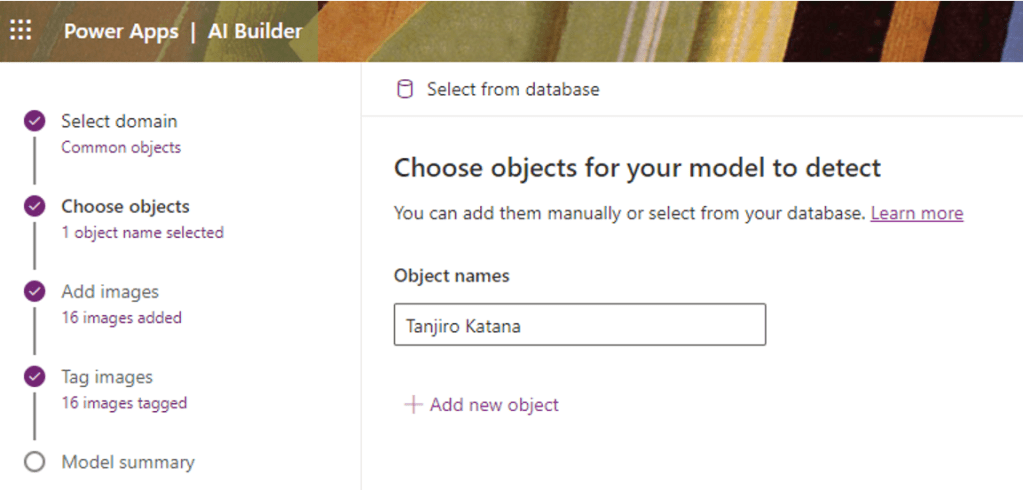
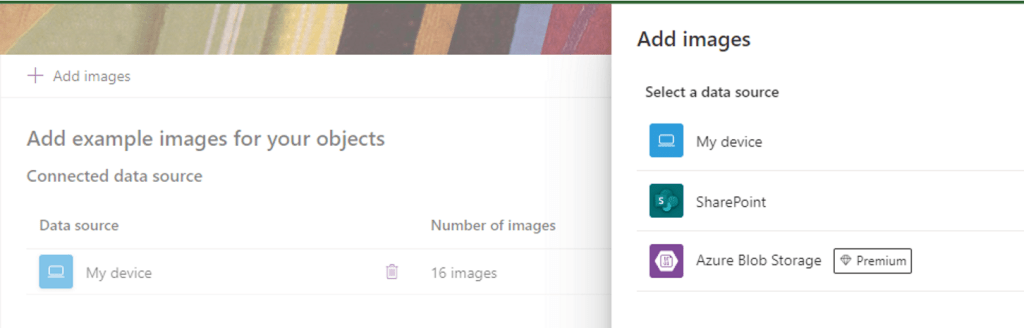
- Next is Add images. These images are objects that AI needs to detect. A minimum of 15 images is needed. You can select your data source from My Device, SharePoint, or Azure Blob Storage. I uploaded it from my device.

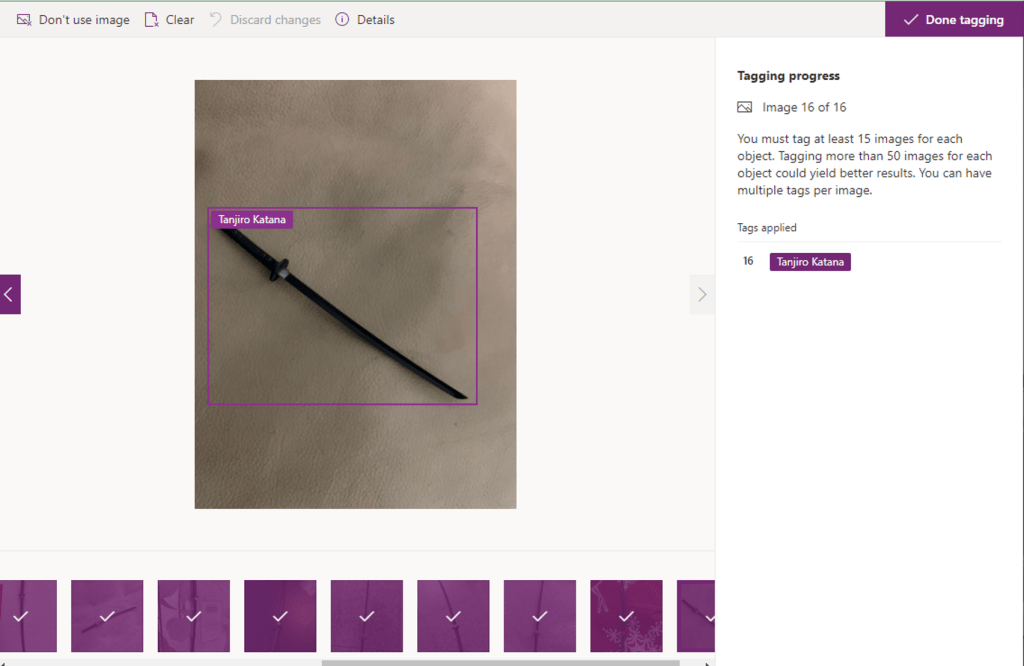
- After uploading 15 images, tag the image to its corresponding object names. Select Done tagging when you are done.

- Train your model.

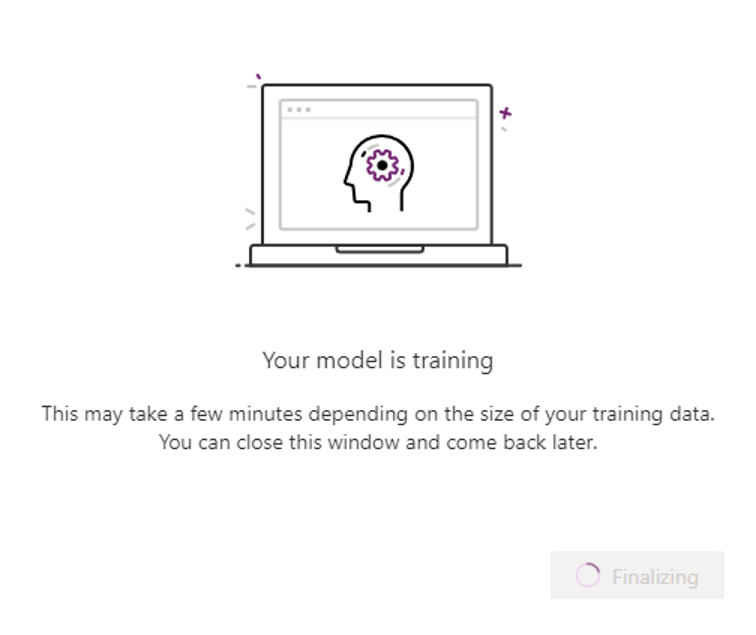
You can do a quick test with your model or train more if you think the performance is below what you expected. It means you need to upload more images and train your model again.


If you’re satisfied, we will use the model in our app.
Use the model in Power Apps:
I used Microsoft Lists to store the TagId, Images, Name of the collection, and Object Name. Each item has a .GLB file for my 3D object, which I will use in our app. The name of my list is Product Details.

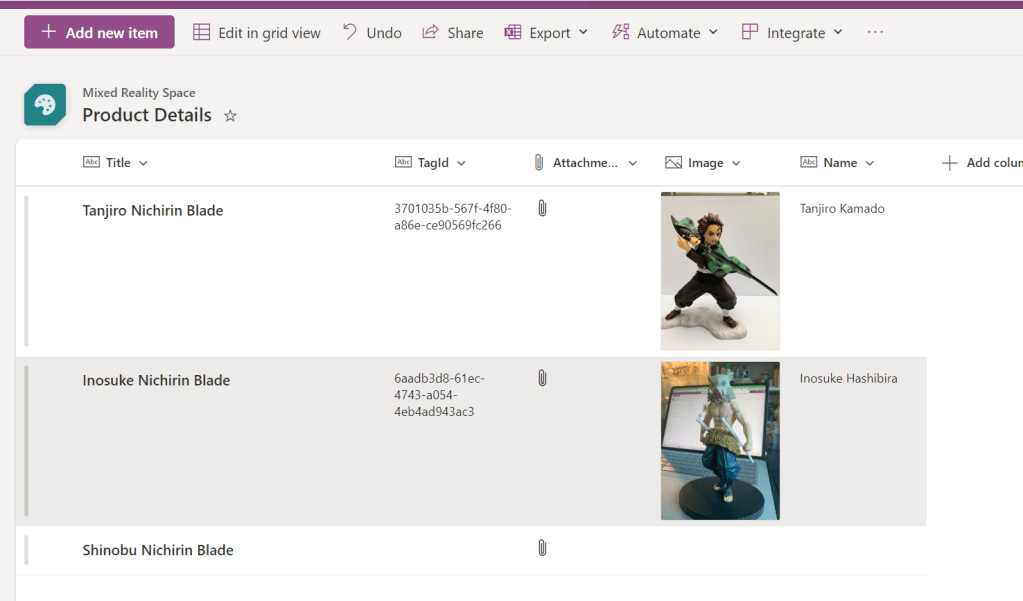
The TagId is a unique id from the Object Detection model that the object uses. We will use this to display the 3D object to the app and other properties we need from an item.
- To get the TagId, Insert the Object detector component from the Power Apps.

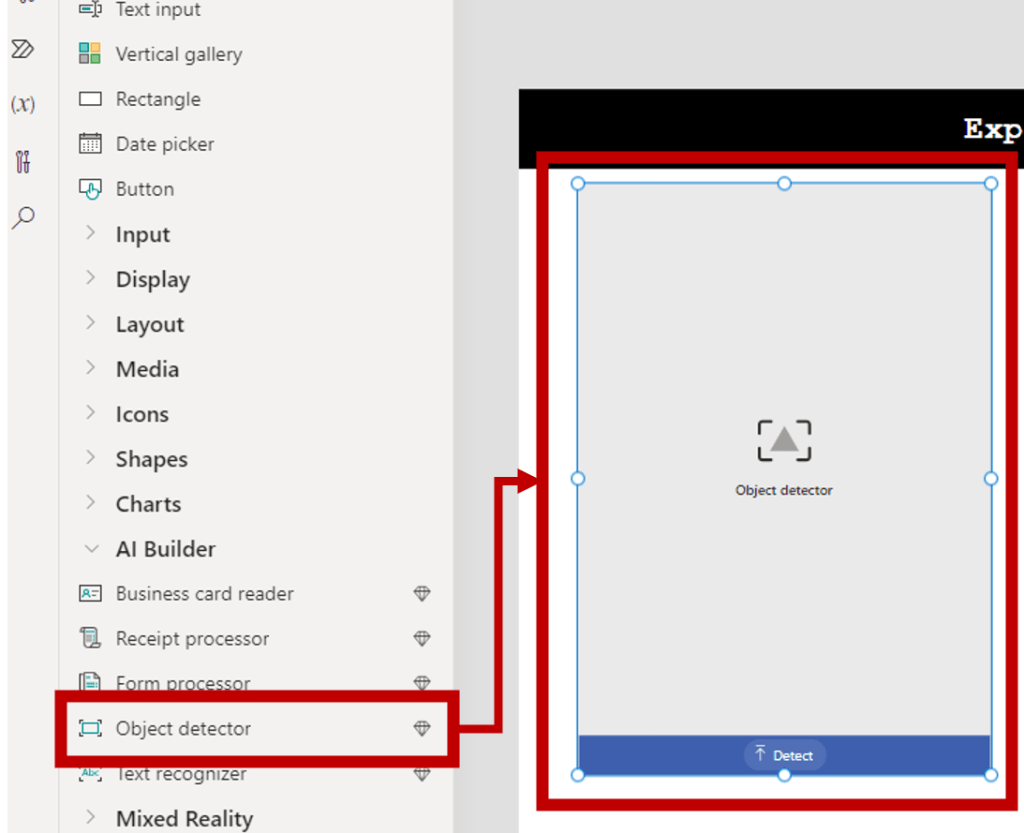
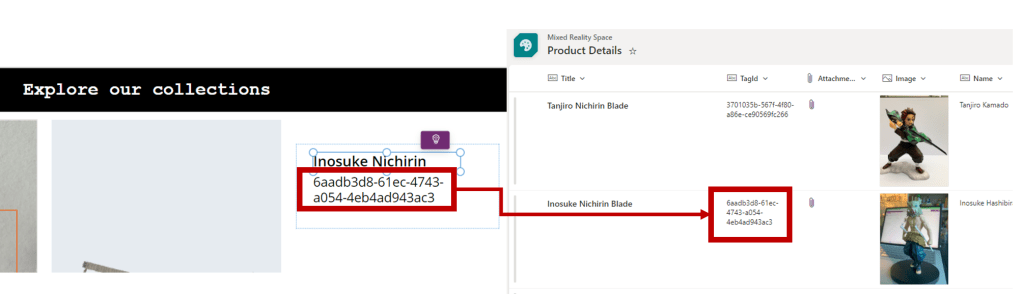
- Insert a Gallery and set the Items to ObjectDetector.Results. In my app, I have Objectector2.Results. I used the Title and Subtitle layout. The name of my gallery is Gallery4. (You can rename the gallery)


- Set the title to ThisItem.TagName
- Set the subtitle to ThisItem.TagId


- Run the app in testing mode, and insert the images to copy the TagId. After copying the TagId, paste it to its corresponding item in the Lists.

- We need to add another gallery. The items are from the Product Details Lists. We filter the item from the Gallery4 TagId to display the corresponding item base on the image detected. The name of my gallery inserted is Gallery5. (You can rename it)
Filter('Product Details',Gallery4.Selected.TagId = TagId)
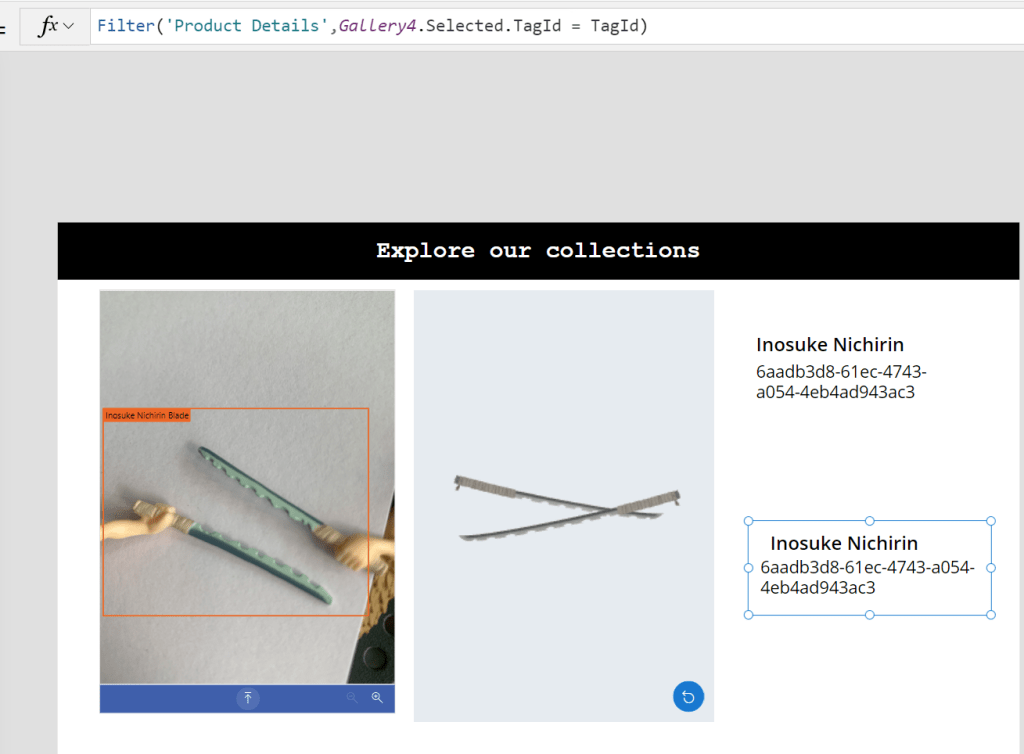
Now we are done setting up our Object detector and querying the data from the list. We will now set up the Mixed Reality component to display the 3D object in the app.
- Select insert >> Media >> 3D object.

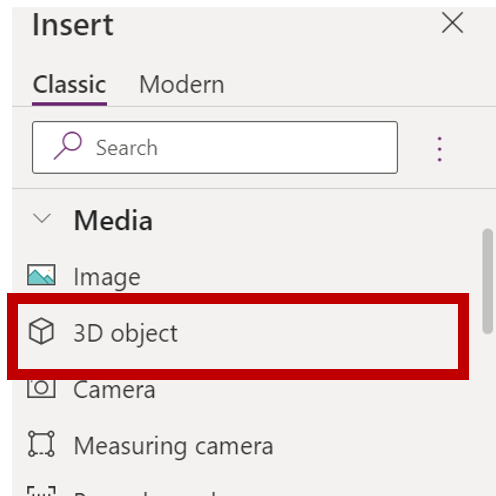
In the 3D object source settings, set this function below:
First(Gallery5.Selected.Attachments).ValueThis function will query the attached .GLB file in the Product Details list item.


Save it and publish your app! 🙂
Summary
MY ENTHUSIASM FOR CRAFTING AI-POWERED APPS HAS ONLY GROWN from AI Builder’s early preview to my ongoing journey with Mixed Reality. Building AI and Mixed Reality within Power Platform, all without writing a single line of code. Welcome to the future of innovation! 🙂
Reference
- Microsoft Learn: AI Builder Challenge
- Overview of the object detection model
- Add mixed reality to your canvas app
- All my 3D objects are from Sketchfab.